


You’ve finished your video! You’ve color graded, you’ve sound mixed, and you even went back and made the logo bigger after an 11th hour client request. You’re all set, right?
Well, not quite yet. According to the NIH, 15% of the US population reports some sort of hearing loss, and you want to make sure your video can be enjoyed by as many people as possible.
If inclusiveness isn’t enough of a reason, then let me entice you with views: videos with complete captions get a boost from the algorithms that lord over the exposure of your videos. (Source: Vidooly)
And as a bonus, on some social media platforms, videos with captions autoplay with the sound off and the captions on. Meaning a lot of people will linger and give you an opportunity to catch their attention. People scrolling in bed next to a sleeping spouse are likely to sit and watch your whole video with the captions on. (I know, I’ve done it a hundred times.)
Have I convinced you yet? Well you’re still here, so I’ll take that as a “yes.” Now, let’s talk about how to correctly add captions, and at the end I’ll share with you an interesting bonus idea for your captions that will help you get repeat views of your video.
Open Captions vs Closed Captions
A quick definition: Closed Captions are when the words spoken in a video are translated into text for specific audiences. They can be turned on or off with a widget in the player. Open Captions, often referred to as ‘subtitles,’ are when the words spoken are on the screen as part of the video. TikTok loves Open Captions.

Closed Captions Example Open Captions Example
The difference is that in a Closed Captioned video, the captions are encoded into the video file. The computer sees a properly encoded captioned video as one file—no sidecars, metadata files, or .srt files alongside your delivery. Sometimes there is also an accessibility audio track, called a 'descriptive track,' that describes what is happening in the video. We’ll save that for a future blog post.
If you’re handing a video over to a client for them to post, expect to spend some time talking through the process and understanding which approach will best suit their needs. And if they are using another player like a custom web player, keep in mind that the closed captions need to be embedded into the file to make the widget magic happen.
How to Create Captions on YouTube
First let’s let’s talk about what you may be thinking: “Doesn’t YouTube just automatically caption my video for me?”
It sorta does. The robots at Google do their very best—but let’s be honest—it’s never going to be perfect. That’s because it’s not fair to expect AI to perfectly transcribe your unusual product names, homonyms, your clever turns of phrase, or the accent of that actor your client insisted you HAD to hire. In other words: It’s a decent place to start, especially if you aren’t comfortable doing it on your edit software, but it’s going to need a lot of help.
Step 1: Upload your video
Step 2: Wait a short bit, then try watching your video with the Closed Captions turned on. Examine the results.
Step 3: You can use YouTube’s Caption Editor to edit the work the machines have done. If you have lots of clear audio, you may have a good foundation.
A screenshot of YouTube's caption editor in action
YouTube’s Video Subtitle Editor has another nifty feature: You can switch to the 'Edit As Text' mode and paste your script there if you have one. The software will do it’s best to line up the words you’ve typed with the text of the video. Again, it won’t always get things dead-on, and you may want to add breaks in different places, but it will give you a great head start.
And there you go! A solid foundation.
Don’t Get Fancy
This seems like a good time to talk about what is and is not allowed in subtitles. While text-based communication has proliferated with the growth of the Internet - picking up new symbols and keyboard tricks along the way - when it comes to subtitles, you might as well be working off of a dusty old typewriter. Stick to the letters of the alphabet and the symbols that are built into your keyboard. Unfortunately, this means no emojis. (*sad face emoji*)
How to Add Captions Using Editing Software
Premiere Pro, Final Cut X, and other editing software handle caption creation somewhat similarly. For the purposes of illustration, we'll cover the process using Premiere below.
After your video is picture-locked you can begin the captioning phase. Enable a caption track, which will be a track above your video track. You may also need to turn on subtitles in your viewer window so you can see your work as you go.
Step 1: Turn on Closed Captions Display track. If you’re asked which kind, pick CEA-708. It’s the most universally compatible (in English in the United States. Consult local experts if you are getting weird results!).
Step 2: Create your captions.
Step 3: Make adjustments as needed. In the Caption window, you can adjust the appearance of your captions, font color, background color, and outline. You can create a new caption by selecting the Plus icon in the lower right. Now you just simply have to write all of the lines you'd like captioned.
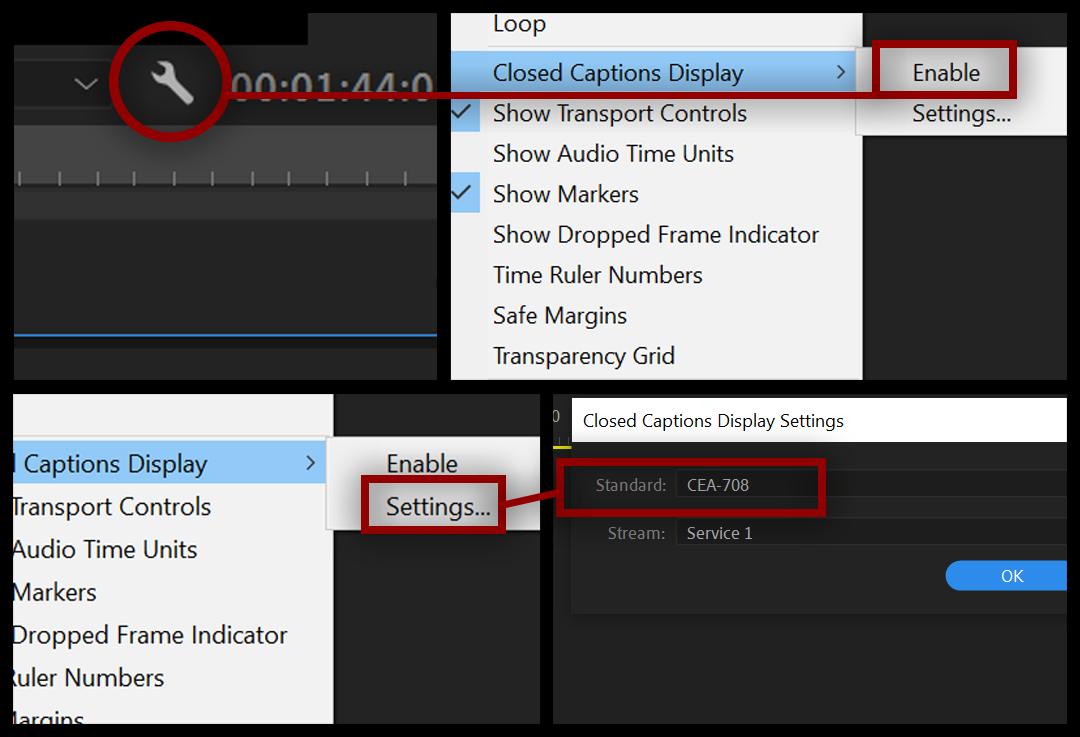
Steps 1
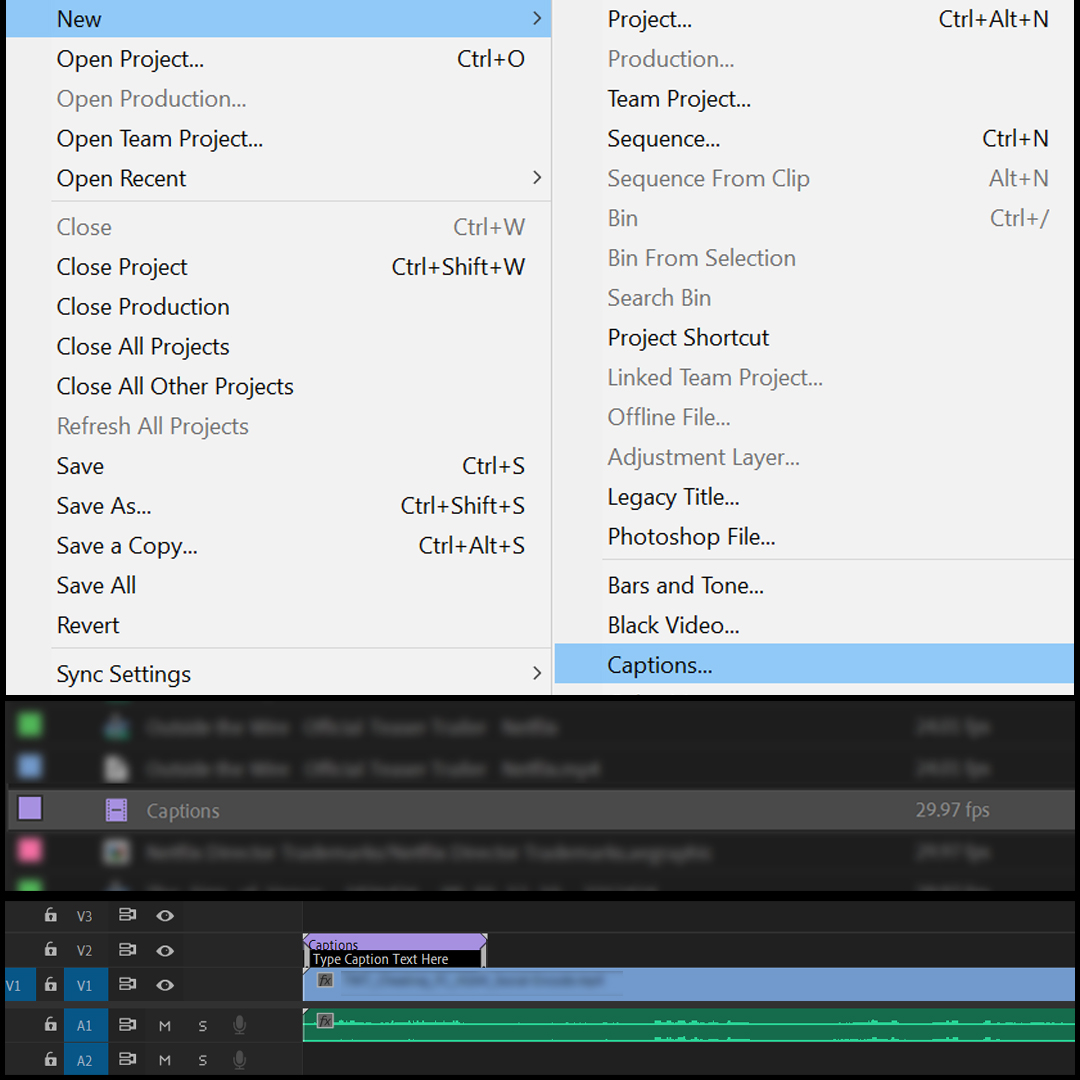
Step 2
A Note on Exporting: If you would like your video to export with closed captions, you can generate an .SRT file that services like YouTube will optionally display for your users. To do this, in the Export Settings dialog, select Captions > Export Options > Create Sidecar File > Subrip Subtitle File (.SRT). If you would instead like to see open captions burned into your video, select "Burn Captions Into Video" in the same dialog box.
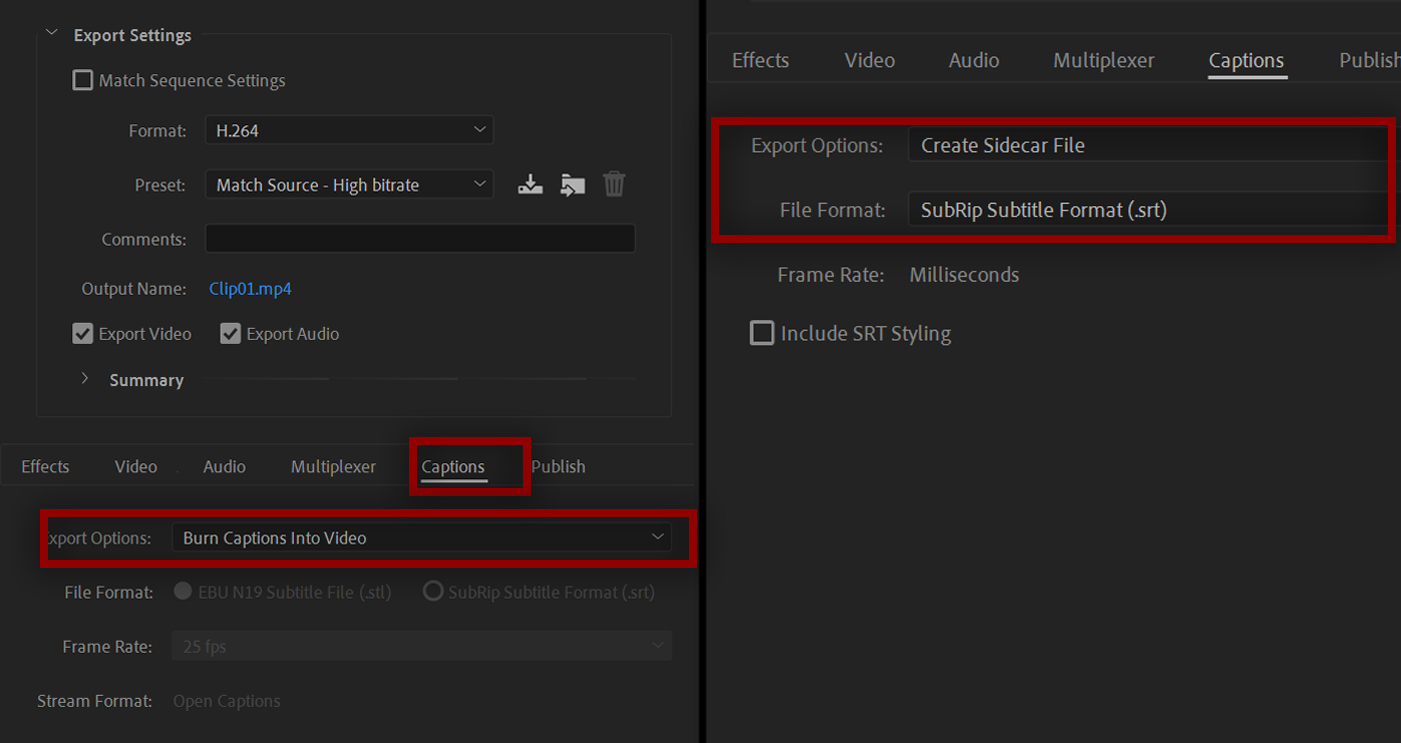
Exporting Options
Other formats, such as .mxf, support captions but usually as metadata—not in the same stream as the video file itself. I recommend you avoid them since h.264 is a standard and is the most widely supported. Adobe is currently in beta on a new captioning workflow, so keep an eye out for this process to become more streamlined soon (hopefully!).
Lastly, you should always test your video in your player of choice to make sure it has rendered correctly and none of your captions have been cut off. It should play in QuickTime player or VLC or just about whatever you throw it at.
One other great tool for working on captions on a Mac is Apple’s Compressor application. At $50, this utility knife for batch encoding and decoding is always my last stop on the captions train—I use it to fix Premiere Pro’s usually flawed output.
And there you have it, an introduction to the fine art of closed captioning. The agency I work for was spending tens of thousands of dollars on outsourcing captioning work for simple projects. With this skill now in house we’ve been able to save them money, which frees up more resources for other parts of production, and makes sure that all our videos can be enjoyed by the widest possible audience.
P.S. I did promise you one extra trick to get more views on your videos: If you put a special discount code in the captions, or a giveaway code, you can mention it at the end of your video, which will motivate viewers to watch it a second time with the captions on.
It’s a bit sneaky, but it can be a great way to drive repeat views as long as you don’t pull the same move all the time.
__
Note From Tongal: "Video Captions Are Important: Accessibility and Audience Engagement" is part of a series of Tongal Community-written blog posts that were originally sourced in the Tongal Blog Open Call Project. The views and opinions expressed in this article are those of the author(s) and do not necessarily reflect the official policy or position of Tongal. Read more Tongal Community-written posts here and then Pitch us a topic you'd like to write about for the Tongal Blog!