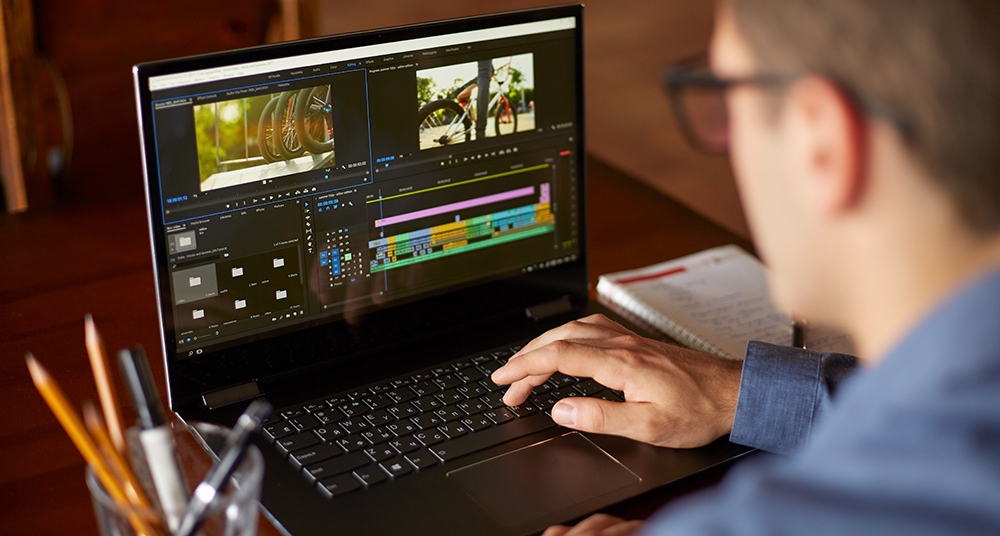
We've all been there: the job comes in, you've ingested the footage and set up your organised folders, you're looking at your Premiere Pro timeline and you're wondering how to make your clients happy, so just how do you do that? Let's assume you're a Premiere user. You may or may not know that there are dozens of features and keyframe utilities that the application has that serve to boost your editing.
In some instances, we overlook these features or only use them when we're experimenting. However, what we don't realise is that editing is an art form within an art form and what might seem experimental today will often become a trend tomorrow.
Think about vlogs, video games, and video art. There's a lot we can borrow stylistically from these formats that we can implement into our very own edits. Here are just a few things that I've noticed that can help make your edits have more life and flare that will surely satisfy you and your client.
1. Split-screen
When we think of split-screen we often think about phone scenes in films, most notably comedy-driven ones. However, the effect can also be used to create a feeling of urgency as well as the notion that a lot of things are happening at once and in different places. This particular effect can be handy if you're editing a product video, travel video, or if you want to create a sensation of something that appears to be taking the world by storm. Split-screen creates energy and impact. Below is a tutorial from Justin Odisho that showcases how you can make variations of the split-screen effect in Premiere Pro.
2. Dynamic Font
Font, font, font. It's everywhere and it comes in so many different forms. What we don't consciously realise is just how much of an impact letters on-screen make on us. Typography is often under-appreciated by newbie editors, but I tend to notice that more confident content makers utilise font and movement openly. The key is to use more modern fonts (sorry Times New Roman) which are more pleasing to the eye and less obtrusive. Secondly, by adding movement, dimension or even just hard cutting between words on the screen, we can create a hypnotic easy-to-watch experience. In the below Paypal "New Money" commercial from 2016, notice how the use of font creates energy.
3. Exploit the 4K
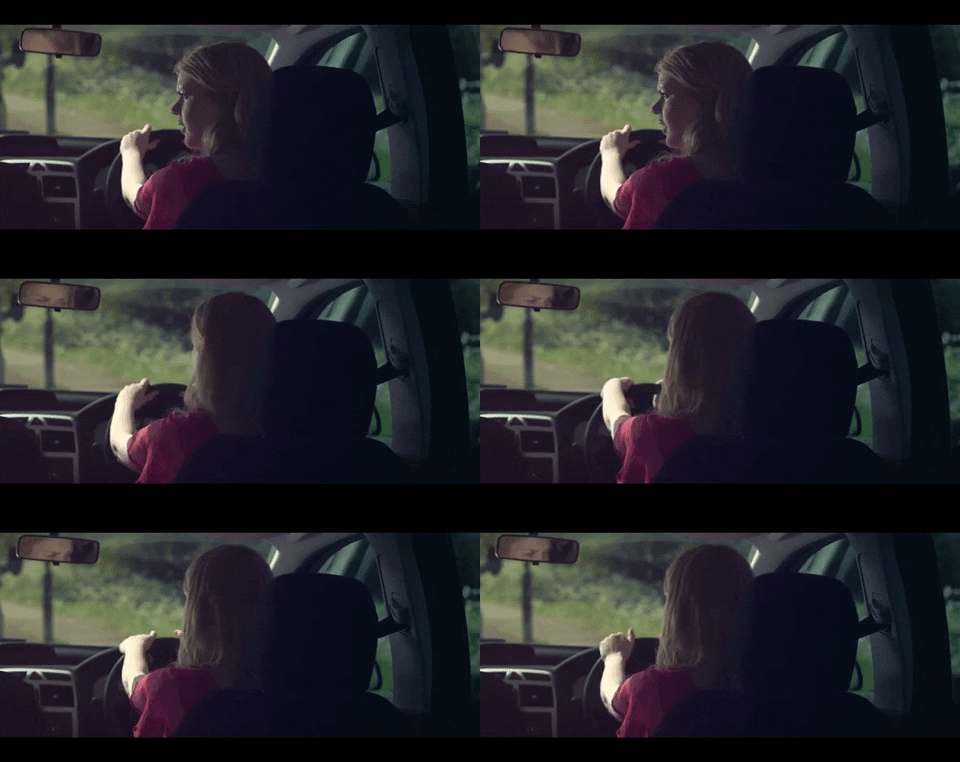
Now that most of our cameras are able to shoot on 4k resolution, we can essentially get two shots out of one in the edit. Without sacrificing a significant noticeable change in resolution, we can zoom into a wide 4k shot to add an additional medium-to-close shot to our list (in other words you're doubling your supply of footage). You can punch in up to 50 percent without losing detail in most cases, which could be useful for dialog scenes, and is especially useful for projects that weren't shot with a track, dolly or slider. For my music video Let Go for Sunder, we zoomed in with the opening scene to create more dynamic movement. This made our shots have more life but also without loss of any resolution. Zooming in doesn't have to be done with a track, with 4k you can do it pretty neatly in your editing program.
So there you have it, edits don't have to be all about hard cuts and fades. With programs like Premiere Pro and a little experimenting, video editors can deliver projects that have more movement, language, and vibrancy. Best of all, these tricks and effects are free and relatively simple to do, and that being all said they're pretty damn neat.
_______
Note From Tongal: “3 Simple Tricks to Liven Up Your Video Edits" is part of a series of Tongal Community-written blog posts that were originally sourced in the Tongal Blog Open Call Project. The views and opinions expressed in this article are those of the author(s) and do not necessarily reflect the official policy or position of Tongal. Read more Tongal Community-written posts here and then Pitch us a topic you'd like to write about for the Tongal Blog!